Found something useful? Don't forget to leave a comment!


Showing posts with label personal. Show all posts

Saturday, November 27, 2010

Black Friday 2010: The Aftermath

Black Friday – that special day in November when deals on everything and anything abound. My Black Friday adventure this year, of course, was computers/electronics-oriented. Here’s a list of my shopping spoils.

Best Buy (believe it or not, this big box store actually does have some good deals from time to time)

  • Western Digital Caviar Black 1TB 7200 RPM hard drive, retail package (most likely a WD1001FALS in the box) – $59.99

Fry’s Electronics

  • Antec EarthWatts 750W – $65 – $30 rebate = $35
  • Samsung 2494LW 23.6” monitor – $149.99
  • Asus 24X DVD burner, $29.99 – $25 rebate = $4.99
  • Zalman Z7 Plus ATX computer case, $48.00 – $40 rebate = $8 (!)

The WD Caviar Black deal was quite good, especially considering the fact that it’s at Best Buy and a boxed retail version. Fry’s had some unbelievably good deals this year – where else are you going to get a 750W name brand PSU for that amount? Or a DVD burner for $4.99? And a name brand mid-tower computer case for $8 whopping dollars? Simply amazing.

Of course, those rebates are a pain to fill out, but as long as nothing goes wrong I’ll get my money back in due time.

Saturday, June 26, 2010

The College Survey Scam

College students are a population that can reliably be characterized as “poor” and “constantly in need of money”; I am no exception. While this is unfortunate enough in itself, even worse are the existence of scams designed to prey off this demographic. I got an email today from a “James Scott” (very likely a fake name) from UniversitySurvey.org, claiming to offer summer part-time work for college students:

Our market research program offers competitive payment for participants in 
simple on-line surveys and evaluations. Our Internet-based program is designed
as a part-time job with a flexible schedule.


Sounds innocuous enough in itself. But if you actually go to the website, you’ll find that the direction of money flow isn’t as expected: first you have to sign up for their program and pay a $29.99 fee. This should send up a red flag for any individual with half a brain. Indeed, a quick inspection of the email headers reveals some questionable tidbits.


Received: from 85-130-2-78.2073232469.ddns.cablebg.net ([85.130.2.78] helo=ee)
by luna.superhosting.bg with esmtpa (Exim 4.69)
(envelope-from <j.scott@universitysurvey.org>)
id 1OSdhB-0000Mh-42


The email was sent from some Bulgarian cable ISP. If you do an nslookup on the UniversitySurvey.org domain, you’ll find that its address (91.196.124.22) is registered to a Bulgarian webhost.


If you plug that IP address into whois, you’ll find that this domain is registered in Bulgaria. Maybe this James Scott guy is some clever American entrepreneur who’s decided to set up shop in southeastern Europe. More likely, it’s just a lowlife, unemployed Slavic scumbag looking to get rich (like that will ever happen).


If I didn’t have better things to do (and if I could actually speak Bulgarian), I’d be giving that ISP (and the scam’s payment processing company) a nice long call. Ah well…just don’t fall for it!


P.S.: On the website they list a US contact address: “10685-B Hazelhurst Dr., Houston, Texas 77043 US”. In any case, this is still highly suspect…


P.S. 2: They also claim to have 24/7 customer support. Wouldn’t hurt to shoot ‘em a message and see just how fake they are.

uTorrent IPFilter Updater 1.5.8 released

This is an incremental update that restores functionality with the blocklistpro.com downloads. The source code has been reworked for full Python 3.1+ compatibility, and the EXEs are now built with cx_freeze. Download the new version here: http://sites.google.com/site/whitehat2k9/Home/my-programs/utorrent-ipfilter-updater

Saturday, May 29, 2010

Convert lyrics to subtitles with lrc2srt

lrc2srt.py is a Python 3 script intended to convert .lrc lyric files into SubRip-format .srt files.
This kind of conversion may be useful, for example, when adding lyrics to a music video file. lrc2srt requires Python 3.x and is licensed under the GPLv3.

To download lrc2srt.py along with a detailed readme file, please visit:
http://www.box.net/shared/5xz9om2ips

Friday, April 30, 2010

eSATA Strangeness on a Foxconn A7DA-S

After all this time (more than a year since I built the rig in question), I finally got the opportunity to try out my board’s eSATA port. This particular motherboard (the AM2+ version of the Foxconn A7DA-S, equipped with the 790GX northbridge and SB750 southbridge) has no integrated eSATA port on the I/O panel; rather, a back-panel expansion bracket is supplied and is supposed to hook up to the “eSATA”/#6 SATA port on the board. For some reason, Windows was not detecting the external HDD, even though AHCI was enabled. I connected the eSATA bracket to SATA port #5, thinking that the designated “eSATA” port was dead. I then went into the BIOS and set SATA IDE Combined Mode to off, and following this Windows was able to autodetect the eSATA HDD.

Sounds all well and good, right? Unfortunately, shortly after unmounting and unplugging the external disk, my computer began to spazz out. Specifically, the system began thrashing the internal hard drive indefinitely, causing a system freeze. I was forced to reset the board. After a CMOS clear and a chkdsk run, I booted back into Windows. Plugging in and unplugging the eSATA drive again caused this crazy disk-thrashing.

After a bit of trial and error, I ended up reconnecting the eSATA bracket to where it should have gone, the #6 SATA port marked “eSATA.” For some reason, this worked: Windows was able to automount the eSATA drive, and unmounting the drive caused no strange behaviors.

I think there are a few things to learn from this strange incident. It is evident that not all motherboard manufacturers implement AHCI and SATA hotplug capabilities in the same way. It seems that on this board Foxconn only implemented eSATA functionality correctly on one of the six SATA ports, perhaps explaining why this port is specifically labeled “eSATA” on the PCB and in the BIOS. Furthermore, my roommate’s newly minted desktop build, which runs a Gigabyte board (the MA78LM-S2H) with a lesser chipset (the 760G) seems to be able to handle hotplugging correctly on all four of its SATA ports. Obviously, there’s a reason why manufacturers like Asus and Gigabyte are considered “Tier 1” brands while guys like Foxconn are relegated to a lesser status in the computer community. Had budget not been a concern when I put together my rig, I would surely have gone with a more reputable motherboard maker.

Tuesday, April 20, 2010

mktorrent-GUI version 1.35 released

Version 1.35 is a major release and supports the saving and loading of profiles. These profiles allow heavy torrenters to quickly import sets of tracker URLs. Additionally, most fields are now persistent – in other words, their content will be preserved in between application sessions.

Go to the main project page for a full readme and the download link.

Friday, January 29, 2010

Z-Alarm 2 (version 2.2) released

Time for a new Z-Alarm release. Version 2.2 brings:

  • overhauled timer management and more responsive user interface
  • randomized alarm buzzer tones (you’ll never, ever get used to it)
  • Spacebar shortcut to hit the snooze button (no more stumbling around drowsily trying to move the mouse)
  • Detailed artist-title tag info display (for supported file formats)
  • More attractive-looking snooze button

More information and download:
Z-Alarm 2 (version 2.2)

mktorrent-GUI version 1.0 released

mktorrent-GUI is a Windows-based GUI frontend to the console-based (Linux/UNIX native) mktorrent tool. There don’t seem to be any decent standalone torrent file creators on Windows. There is MakeTorrent, but that was last updated in 2004 and doesn’t support more modern features like private flags. My frontend aims to address these shortcomings and expose all of the functionality of mktorrent to the user via an easy-to-use interface.

Of particular interest to hardcore torrenters is the batch mode feature. If a directory is specified as a source, mktorrent-GUI will scan one level deep for subdirectories and automatically create a torrent for each subdirectory. All of the usual features such as comments, piece size and the private flag can be set.

More information and download link:
mktorrent-GUI version 1.0

Saturday, January 16, 2010

Corsair H50: CPU cooling, redefined

Air cooling is simple and inexpensive, and for this reason it is by far the dominant method of CPU cooling. However, they aren’t flexible; overclocking will often overwhelm the cooler’s ability to regulate temperature. This was precisely the problem I ran into with my desktop rig:

  • Case: Cooler Master Centurion 5 Blue
  • PSU: Raidmax RX-530SS Hybrid 2
  • CPU: AMD Phenom X4 9850 Black Edition (125W TDP)
  • Cooling (old): Arctic Cooling Freezer 64 Pro 92mm
  • Motherboard: Foxconn A7DA-S
  • RAM: 2x2GB OCZ Reaper HPC DDR2-1066 (the good old days, when memory was dirt cheap…)
  • GPU: Sapphire Radeon 4830 512MB GDDR3
  • HDD: Western Digital Caviar Blue 640GB
  • Optical: Samsung SH-S223B
  • Add’l fans: 120mm, 2 x 80mm

At stock clocks and voltage, the CPU would idle around 33-35 degrees C. Seems pretty normal, right? Whenever the CPU encountered a heavy load, temperatures would easily skyrocket past 61C, which is AMD’s specified thermal limit for this particular chip. I was forced to take it easy with demanding applications like video encoding and processing – overclocking, of course, was completely out of the question. The latter was especially unfortunate as my chip seems to need a bit more voltage for any decent overclocking to happen.

So I decided to something about it.

After quite a bit of research, I came across the Corsair H50. It’s known as a closed-loop liquid cooler. Water/liquid cooling obviously provides vastly improved performance over air cooling, but a decent full-fledged setup with a pump and radiator is much more complicated to set up, and also much more expensive. The risks of watercooling (fluid leakage, regular maintenance) are also something to consider. The Corsair H50 claims to provide the benefits of liquid cooling in a completely sealed, compact package.

Corsair claims that installation is easy, but it ended up taking longer for me (maybe it was just a result of my own clumsiness?) I ended up doing some steps out of order before everything came together.

The H50 comes with a “high-efficiency” 1700RPM 120mm fan for its radiator. The radiator allows you to attach an additional 120mm fan to it to create a push-pull setup, which I did by using my existing case fan.

The results? Nothing short of phenomenal. Check out these temperatures:

idle: 27-29C (2.6GHz @ stock 1.28V); 33-35C (3.0GHz @ 1.312V)
load (running Prime95): 45C (2.6GHz @ stock 1.28V); 54C (3.0GHz @ 1.312V)

Under a more realistic load, my temps don’t go above 47C.

If you need serious cooling without the hassle of a full-blown enthusiast setup, I wholeheartedly recommend the Corsair H50. You’ll be blown away by what it can do.

Sunday, November 1, 2009

Create CUE files from dBpoweramp CD rips with dbpa2cue

EAC is undoubtedly a powerful tool for ripping CDs, thanks to its vast number of configuration options and support for features like secure mode, AccurateRip database checking, gap detection, and CUE file generation. For the most part, dBpoweramp is a similarly awesome CD ripping tool – although it’s not free, its flexible codec system and no-duh GUI make for a great combination of performance and ease-of-use. It does, however, lack the aforementioned ability of EAC to create CUE files, which can be used to re-burn ripped audio files back to a disc.

That’s where my new dbpa2cue tool comes in. When secure mode is used, dBpoweramp can be configured to write a detailed logfile with ripping information. dbpa2cue is able to read the relevant per-track information from the logfile and use this data to write a viable CUE file. If the ripped audio files are still present, dbpa2cue can optionally read tag data and add additional metadata to the CUE file.

The core of dbpa2cue utilizes libDBPA, my DBPA log processing library, originally written for the earlier dbpa2eac program (which was taken down following a complaint from a what.cd moderator). You will need the .NET Framework, 2.0 or later.

The GUI of dbpa2cue is very easy to use – simply browse for, drag and drop, or type in the path to a valid dBpoweramp ripping log. By default tagging data is used if possible.

Version 1.3 (released 1/13/2010) is now available for download:
http://www.box.net/shared/2pu0auhet4

Thursday, October 15, 2009

My Picks: The Best Windows 7 Features

Windows 7’s version number is actually NT 6.1, implying it’s only a minor point release compared to Vista (NT 6.0). But in reality, most would agree that Win7 is a significant step forward in the OS world, even if it’s just a comprehensive improvement of the Vista codebase. Regardless of your opinions on Vista, it’s hard to deny that 7 brings some awesome new features to the table. Here is my Top 10 take on those awesome features, in no particular order.

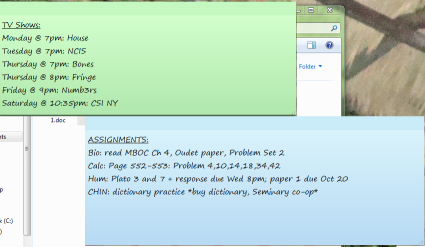
  1. Sticky Notes
    Functional yet brilliantly simple, these little guys live on your desktop and are a great productivity tool for keeping track of things. Handwriting support on tablets, basic text formatting, and multiple color options are an added bonus.
    stickynotes
  2. The “New” Taskbar
    Vista sorta changed things up, but with Windows 7 the taskbar is a wholly reinvented affair. Program labels are not shown by default – instead, you’re displayed with a list of icons which can be permanently pinned. Software can also be written to take advantage of jumplists, accessible by right-clicking icons. To accomodate all this, the taskbar is now slightly higher, but I believe it’s well worth the small cost in screen space.
    jumplist
  3. Desktop Wallpaper Slideshows
    Macs (which I hate) have had this feature for a while, and on the Windows of the past one had to resort to 3rd-party software. Now Microsoft has made this eye candy part of the OS. Win7 handles hundreds of wallpapers in a folder with ease, and can be set at different intervals to change the wallpaper.
    wall-slideshow
  4. Libraries
    Some people might argue with me for praising this feature. But like it or not, the new Libraries feature in Windows 7 makes folder consolidation a snap. Got some movies on your basement NAS box, music on your HTPC, and photos on your workstation? Just create a library and you can manage and view it all as if it were all in one place, thanks to Win7 Libraries.
    library
  5. New Windows Media Center Features
    These days a lot of PC TV tuners are hybrid, meaning that they can tune analog or digital signals, but not at the same time. Take the Hauppauge HVR-2250, for example – it has DUAL hybrid tuners. Under Vista one could record either two analog streams or two digital strings, but not mix and match – essentially defeating the purpose of having a hybrid tuner in the first place. Now, Win7 allows you to mix and match, recording one analog and one digital stream at the same time. Great for HTPC enthusiasts.
    WMC in 7 now also supports ClearQAM tuning, which was possible in Vista but only with the OEM-only TV Pack 2008. This will be a boon to anyone who subscribes to FiOS TV or any other TV service that uses ClearQAM.
  6. Standardized Monitor Configuration
    In the days of Vista and earlier, advanced monitor configuration was done more or less through the video card driver, either NVIDIA ForceWare or ATI’s Catalyst Control Center. Now everything monitor-related is taken care of through a new, simplified, standardized applet. Regardless of whether it’s a Radeon, GeForce, or crappy Intel card, everything from dual monitors to resolution to cloning is all handled through Windows itself.
    monconfig
  7. Logon Background Customization

    This is something that’ll be more interesting for geeks and OEMs, but is cool nonetheless. In previous Windows versions one had to resort to hacking the resources in the logon shell to achieve the same effect. Now even the average joe can rock out with a super-awesome logon screen! Note, however that support is limited to files <256kb and a certain predefined set of resolutions only.
  8. Unified Network Manager
    The new taskbar networking interface now unifies all of your connection options, whether it’s wireless, wired, or WWAN. The layout is suspiciously reminiscent of NetworkManager on Linux…but anyway, it makes switching/connecting a LOT easier.
  9. Device Stage
    Windows 7 now offers users an overview of all the devices connected to the computer – printers, USB peripherals, hard drives, scanners, cell phones, etc etc. Apparently device developers can use Device Stage to extend the functionality and interaction of their products. We’ll see how that pans out.
    devicestage

There are so many new and improved features in Windows 7 – this is but a smattering of them. Hopefully, you now have an idea of the awesomeness to expect when Microsoft releases 7 to the public.

Sunday, September 27, 2009

Hardware-independent Cloning of a Linux (Fedora) Install, Part 2

Back in Part I of the tutorial, I covered the process of creating an image of a Linux computer (running Fedora) using FSArchiver and an external USB hard disk as the backup medium. Now, we’re going to restore the image onto a target computer (with a different hardware configuration) and prep this new system for booting. Our goal: That the target machine will run a Linux environment that appears virtually identical to the user, thus saving lots of time that would otherwise be needed to reinstall software, tweak the user environment, etc.

Create partitions

In order for the cloning to work successfully, you will need the same number of partitions as on the source machine, plus an optional swap partition. Each partition, in turn, must be large enough to store all of the data that will be restored onto the partition. Parted Magic, true to its name, provides the excellent and easy-to-use GParted tool, a GUI frontend to the parted partitioning software. The nuts and bolts of using GParted are out of the scope of this article; please see the official documentation for more details.

fsa2

In the example screenshot above, I have created several partitions on a WD10EADS 1TB hard drive. /dev/sda3 is a 200MB /boot partition. Furthermore, /dev/sda4 is an extended partition that contains the / root partition /dev/sda5, the large /home partition /dev/sda6, and the swap partition /dev/sda7 (again, swap is optional. It is more relevant to low-RAM systems). Note that formatting the partitions (with the exception of swap, if you created one) is not necessary, since FSArchiver will format each partition to match the parameters of the source filesystem.

Mount the backup medium and restore the image

Now it’s time to restore the image onto the new partitions. Run the mount manager and mount your external disk.

fsa1

In the example above, I have mounted my Seagate drive, /media/sdc1.

After mounting the image, open a terminal prompt and cd to the mount point of the external disk, e.g. /media/sdc1. To execute the restore process:

# fsarchiver restfs –v /media/XYZ/ARCHIVE_NAME.fsa id=0,dest=/dev/X1 id=1,dest=/dev/X2,id=2,dest=/dev/X3

Replace with the correct parameters relative to your particular system, of course. You can also add a –j X, where X is the number of processor cores available, to enable multithreading. Make sure the partitions you are restoring to correspond to the order of the partitions in the image file. The restore process make take anywhere from a half hour to several hours or more, depending on your CPU speed and hard drive.

Fix the GRUB bootloader

Next, we need to ensure that the grub.conf file points to the correct partitions. Mount your boot partition and go to grub/grub.conf. Make sure that the splashimage and root of each boot entry points to the proper partition. Keep in mind that grub starts counting from 0 – so if you have a partition /dev/sda3, it would be known as (hd0,2). Likewise, /dev/sdb1 would be (hd1,0).

Now that our grub.conf is correct, we need to install GRUB on the MBR (master boot record) of your primary (boot) hard drive. Determine what your boot partition is using the guidelines in the previous paragraph. Let’s say my boot partition is (hd0,1). Then my commands would be:

# grub
grub> root (hd0,1)
grub> setup (hd0)

At this point, your system is ready to boot into its new, cloned Linux environment. Yes, it can boot – but will most likely fail. This leads us into the final steps…

Rebuild the initrd

The initrd is the Linux Initial Ramdisk, a sort of early boot environment that prepares the root environment for mounting later on in the booting process. During a regular (e.g. from the install CD/DVD) Fedora installation, the installer generates a ramdisk specific to the computer’s disk and hardware setup. Since the whole point of this tutorial is that we are assuming a different set of hardware, the original initrd image is useless.

First, we need to find the version string for the kernel on the system. On a running system we could just do a uname –a, but since we’re running off a LiveCD this won’t work. An alternative would be to check grub.conf. A typical kernel version string would be something like:
2.6.29.6-217.2.16.fc11.i686.PAE

Generating a new initrd can be a bit tricky, depending on whether you have a separate boot partition or a unified / partition with a boot directory.

The latter situation (a single, unified root+boot partition) is fairly straightforward. Using the mount manager, mount this partition and note its mount point. Open a command prompt:

# chroot /media/XYZ (replace XYZ with the appropriate location)
# cd boot
# mkinitrd –f initrd-KERNEL_VERSION_STRING.img KERNEL_VERSION_STRING

Obviously, replace KERNEL_VERSION_STRING in the last command with the kernel string specific to your Linux image. This command will overwrite any existing initrd image for that version of the kernel.

The former situation, involving separate / and /boot partitions, is slightly more tricky. The basic idea is the same; however, since a chroot is involved we cannot run mkinitrd and tell it to write across partitions. One way to overcome this is to mount both partitions, write the initrd file to the / filesystem, and move (mv) it where it belongs to the boot partition. Another, slightly more advanced method is to first mount the / partition, then mount the boot partition to the /boot directory on /.

Setting up swap space (optional)

If you created a swap partition, you’ll need to let the computer know about it. First, we’ll need the UUID of the swap partition. To do this, run:

# blkid

Note the device mapping and UUID (in quotation marks) of the swap partition.

Now mount the / partition and go to etc/fstab. Edit, or create if necessary a line like the one below, making sure to use the UUID from blkid:

UUID=c2f72258-bcd7-4cff-93fc-e584bb03226f swap  swap   defaults        0 0

A Few Last Tweaks

There are a few more tweaks that I highly recommend. On the cloned / partition, edit the file etc/udev/rules.d/70-persistent-net.rules and delete all lines beginning with “SUBSYSTEM”. This will force the Linux install to redetect the computer’s network hardware.

Finally, make sure your video settings will work with the new machine. Recent versions of X (like that shipped with Fedora 11) do not require an /etc/X11/xorg.conf file, but if you have installed either the ATI or nVIDIA proprietary drivers, make sure that the hardware in your computer is compatible. If in doubt, simply delete the aforementioned xorg.conf file to allow X to autodetect your video hardware and select a generic driver.

Congratulations! At this point, your Linux clone is fully prepared and ready to run. Reboot from Parted Magic and cross your fingers – you should see a nice GRUB bootscreen IDENTICAL in appearance to the one on your original computer. Boot as usual, and you should experience a user interface that’s exactly the same as the way you left it. Enjoy your new old system!

Tuesday, September 22, 2009

A Collection of SLIC 2.1 BIOS mods

Here’s a list of all my SLIC 2.1 modded BIOS, created for educational purposes. For more information on what these do, please see: http://forums.mydigitallife.info/showthread.php?t=6921. As detailed there, the mods were performed using AndyP’s AMI and Award Mod Tools. All files below are archives containing the modded BIOS, the corresponding XRM-MS certificate, and a suitable DOS flashing tool. For more information on DOS BIOS flashing, please see my previous post.

Disclaimer: BIOS flashing is, of course, a potentially risky operation. All the mods below have been flashed and tested successfully, but I am not responsible for anything that happens due to the use of these mods.

UPDATE 05/08/2010: MA785GM-US2H updated to new F10 BIOS.

UPDATE 03/31/2010: MA785GM-US2H updated to new F8 BIOS.

UPDATE 10/09/2009: Foxconn A7DA-S updated to new 81BF1P09 BIOS.

Board model: ASRock A780GMH/128M
BIOS type: AMI
BIOS version: P1.20
SLIC OEM: Acer[ACRSYSACRPRDCT-ANNI]2.1.BIN
Mod method: SSV3
Download: http://www.box.net/shared/122kmxsark

Board model: ECS MCP61PM-AM
BIOS type: Award
BIOS version: 1.12GS
***NOTE: This is an OEM board used in the eMachines T5234 and possibly some Gateway models.***
SLIC OEM: Acer[ACRSYSACRPRDCT-ANNI]2.1.BIN
Mod method: Dynamic (due to presence of existing Vista SLIC 2.0 table)
Download: http://www.box.net/shared/uc6kzkjzo2

Board model: ECS MCP61PM-HM
BIOS type: Award
BIOS version: 5.27
***NOTE: This is an OEM board used in the Compaq SR5110NX.***
SLIC OEM: Acer[ACRSYSACRPRDCT-ANNI]2.1.BIN
Mod method: Dynamic (due to presence of existing Vista SLIC 2.0 table)
Download: http://www.box.net/shared/547p9eml6i

Board model: Foxconn A7DA-S (Socket AM2+ DDR2 version, NOT the new 3.0!)
BIOS type: AMI
BIOS version: 81BF1P09
SLIC OEM: Acer[ACRSYSACRPRDCT-ANNI]2.1.BIN
Mod method: SSV3
Download: http://www.box.net/shared/fp5lcr777f

Board model: Gigabyte MA78GM-S2HP
BIOS type: Award
BIOS version: F5
SLIC OEM: Acer[ACRSYSACRPRDCT-ANNI]2.1.BIN
Mod method: SSV3
Download: http://www.box.net/shared/rjsk4tfrp7

Board model: Gigabyte MA785GM-US2H
BIOS type: Award
BIOS version: F10
SLIC OEM: Acer[ACRSYSACRPRDCT-ANNI]2.1.BIN
Mod method: SSV3
Download: http://www.box.net/shared/94rvdqg79i

Friday, September 4, 2009

Z-Alarm 2 is Released

The original Z-Alarm was, admittedly, a little on the rough side. While it worked reliably and did its job, it looked ugly and gray like a misshapen piece of urban sculpture. Z-Alarm 2 aims to fix all that. In fact, it was designed around one goal: to fully emulate a traditional alarm clock.

screen

As you can see, the GUI was completely rewritten. All user controls are grouped at the bottom of the screen. A custom LED-style fonts goes nicely with the idea of an old-fashioned alarm clock.

Most notably in this release is the expanded music support. As long as a DirectShow codec is installed for a particular audio format, Z-Alarm 2 can use it. For example, in the above screenshot, I’m playing an AAC/m4a file.

More information, instructions, technical details, and credits can be found in the readme. I’ll leave you to try it out for yourself:

http://www.box.net/shared/hpc7rjlz8q

Monday, August 24, 2009

Create a “Modern” MS-DOS USB Bootdisk

DOS and MS-DOS may be ancient on the timeline of technology, but that says nothing about the usefulness of this old, crusty operating system. Perhaps you’re feeling nostalgic about that old game (*cough* *cough* DOOM), or more likely you need a pure DOS environment to flash the BIOS on your brand-new motherboard.

But DOS has traditionally been relegated to the realm of the floppy disk, and when was the last time you saw one of those? Instead, we’ll be using a more 21st-century USB flash drive as the host boot media.

Before we begin, you’ll need to download a couple of things:

The MS-DOS files here are originally from http://ms-dos7.hit.bg/; I updated a few of the included utilities, namely DOSKey and DOSLFN (long file name support). Other noteworthy features of this custom MS-DOS bootdisk include CD-ROM support and DOSKey macro support.

From the HP USB Tool archive you downloaded, extract HPUSBFW.EXE to a handy location (The other file is a command-line version of the utility). In the MS-DOS archive you should find a folder named “msdos71b” – extract that entire folder somewhere handy as well.

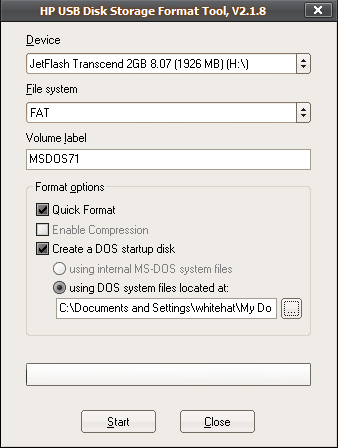
Run the HP USB Tool, HPUSBFW.EXE. Select your USB drive as the target device. Make sure the filesystem is FAT (and NOT FAT32 or NTFS). The volume label can be anything, but name it something meaningful :) Check “Quick Format” and “Create a DOS startup disk” / “using DOS system files located at”. Browse to the location of your extracted “msdos71b” folder.

 hpusbtool

Cross your fingers and hit “Start”. If all goes well a popup info window should appear. Now, your USB drive is DOS bootable with a barebones set of files. But we want more than just barebones, right? We want a tricked out, fully prepared MS-DOS distro. To do that, browse to the contents of that “msdos71b” folder you extracted. Select all, and copy all the files to the root of your USB drive. Just hit no when asked to replace anything (the HP USB Tool already used the same files).

When done, your USB drive’s contents should be something like the following. Note that some files may not appear in Windows Explorer since they are regarded as system files.

usbfiles

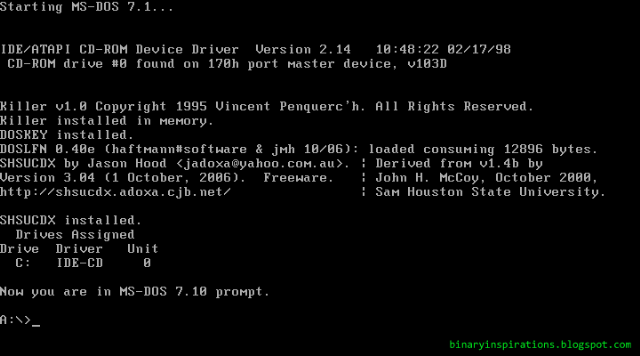
At this point your MS-DOS USB bootdisk (bootstick?) is ready to go. Simply pop it in on any computer with USB booting support, and you should be rewarded with a nice, old command prompt:

msdos71

Some things never change.

Monday, June 8, 2009

uTorrent IPFilter Updater (uTIPF) v1.5.6 released

Version 1.5.6 of my uTorrent IPFilter Updater (uTIPF) is now available. This is a point release that adds date checking to the update logic. Instead of blindly downloading the filter list like before, uTIPF first checks to see if the client-side list is already up-to-date. If so, uTIPF will notify the user and exit.

The new version is live and available as usual at

http://sites.google.com/site/whitehat2k9/Home/my-programs/utorrent-ipfilter-updater

Portable Apps Relaunch - Mozilla Firefox Ultimate Edition

The Portable Apps section of the site has been languishing for awhile now. What better way to revive it than with the release of an all-new, never-before seen portable app?

ffultimate

Mozilla Firefox Ultimate Edition may sound cheesy, but this portable powerhouse is no joke. This custom spin adds integrated Flash, Java, PDF, and Quicktime multimedia capabilities to the venerable Firefox browser – all in one neat package that’s ready-to-run from a USB stick or network drive.

*Firefox 3.0.10
*Foxit Reader 3.0 build 1506 w/ Firefox plugin
*Java SE 6 Update 14
*Adobe Flash 10.0.22.87
*QT Lite 2.9.0 (http://www.codecguide.com)

For more info and download links, head over to http://sites.google.com/site/whitehat2k9/Home/my-programs/portable-apps/mozilla-firefox-ultimate-edition

And don’t forget to check out the rest of the BINARY INSPIRATIONS Portable Apps Collection at http://sites.google.com/site/whitehat2k9/Home/my-programs/portable-apps.

Monday, June 1, 2009

BINARY INSPIRATIONS has a new URL

Effective today, BINARY INSPIRATIONS has moved to a more meaningful and relevant URL: it’s now http://binaryinspirations.blogspot.com. All dependent links such as the RSS feed, stat counter and Technorati link have been updated accordingly.

Tuesday, May 19, 2009

Get your new, awesome not-so-budget computer for under $300!

Pardon the title, it sounds like an obnoxious ad. Memorial Day is just around the corner, and you know what that means – deals, deals, deals! It’s now possible to get a very nicely equipped computer build for less than $300 shipped, thanks to Newegg’s free shipping deals on many cases, which saves some serious $$$ for those on a budget.

Prices are current as of 5/19/2009.

Part Price
AMD Athlon X2 7750 Black Edition, 2.7GHz $59.99
Rosewill R804BK ATX Mid-Tower Case (includes 350W PSU) $39.99
ASRock A780GMH/128M Micro-ATX motherboard $71.99
Patriot Viper 2x2GB DDR2-800 RAM (use promo code EMCLSMX34) $26.99 (after $25 MIR)
Western Digital SE16 WD500AAKS 7200 RPM SATA Hard Drive $59.99
Sony Optiarc AD-7240S 24X SATA DVD Burner $25.99

SHIPPING

$10.21

TOTAL BEFORE REBATES

$317.53

FINAL COST

$292.53

Needless to say, this thing is going to kick some serious ass compared to any store-bought computer in the same price range. I’ll be picking up more or less the same build this weekend – considering the amazing performance/$ ratio of the 7750BE CPU, 4GB of RAM, and 500 gig hard drive, this is quite possibly the best $300 you can spend on a computer.
Also worthy of note is the ASRock 780G motherboard, which is a second-generation design featuring the improved SB710 southbridge and a slew of ports, including HDMI and SPDIF audio. (Hint hint: this thing would be a great media center/HTPC machine.) In terms of software, this thing has more than enough brunt to take Vista and Windows 7 head-on.

Grab the goods while they’re still hot!

Tuesday, April 7, 2009

Check out a book…with Google Book Downloader

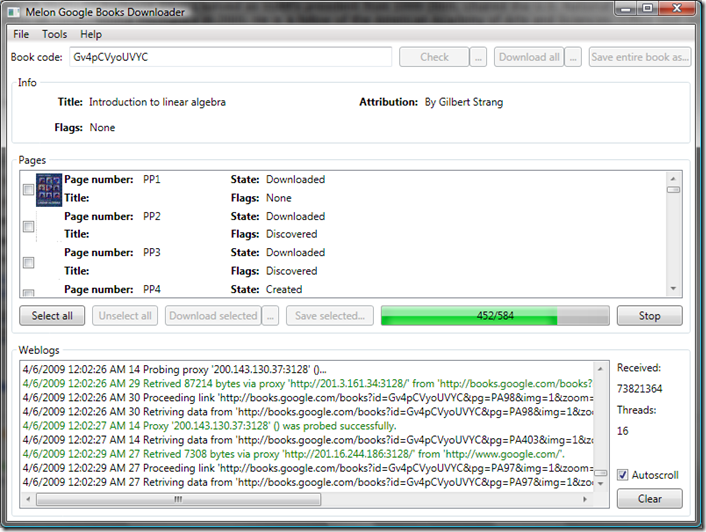
Google Book Search and its ambitious scanning project have put many of the world’s finest literary and scientific works at our fingertips. One can download entire works if they are public domain or are no longer under copyright, but for current-market books only a preview of a certain number of pages is allowed. So…let’s say, hypothetically, that you DESPERATELY need the full text of a book, but don’t feel like making a late-night trip to the library. What then? Why, it’s Google Book Downloader to the rescue!

This handy little tool, written in C#, solves your literary woes. Simply input the Google BookID (found in the URL of the original Google Books page) and hit Check. Once that completes, click “Download All” and GBD does the rest by systematically downloading the pages in a randomized order (boy, does that make sense :) Finally, click “Save entire book as” the temporary downloaded pages are compiled into a nice, neat PDF. The GUI could use a little work, but once you figure out how to use the tool things work out nicely. PDF creation is handled by iTextSharp, the C# port of the popular iText Java library.

GBD in action:

gbd

http://googlebookdownloader.codeplex.com/ (.NET Framework 3.5 is required.)

Note that I do NOT condone any illegal or unsavory use of this software. Have a nice day.